GIF Resizer Guide: Percentage, Dimensions & Quality Explained
Animated GIFs are the lifeblood of modern digital communication. From expressing complex emotions in a single loop to showcasing product features on a website, these dynamic images are ubiquitous. However, their charm often comes with a significant drawback: hefty file sizes. Unlike compressed video formats, GIFs tend to carry a larger data footprint, which can lead to slow loading times, frustrated users, and missed opportunities. This is where a powerful Gif Resizer tool becomes indispensable. By intelligently adjusting the size and dimensions of your animated GIFs, you can unlock a world of optimization, ensuring your visuals are always perfectly suited for their intended platform without sacrificing impact.
Understanding how to effectively resize a GIF involves more than just shrinking it; it requires a grasp of scaling methods, quality algorithms, and platform-specific requirements. This comprehensive guide will demystify the process, helping you master the art of GIF optimization.
The Core Mechanics of GIF Resizing: Percentage vs. Exact Dimensions
When you embark on the journey of resizing a GIF, the first crucial decision you'll encounter is how to define its new size. Modern Gif Resizer tools typically offer two primary methods:
Scaling by Percentage
- What it is: This method allows you to scale your GIF proportionally based on a percentage of its original size. For instance, selecting 50% will reduce both the width and height to half, while 200% will double them.
- When to use it: Percentage scaling is ideal when you need a general reduction or enlargement and want to maintain the GIF's original aspect ratio perfectly. It's user-friendly for quick adjustments where precise pixel dimensions aren't critical. Think of it as a universal 'zoom out' or 'zoom in' feature for your animation. It's particularly useful if you're not sure of the exact pixel values but know you need a smaller or larger version.
- Benefit: Guarantees that your GIF won't appear stretched or squashed, preserving its visual integrity.
Setting Exact Pixel Dimensions
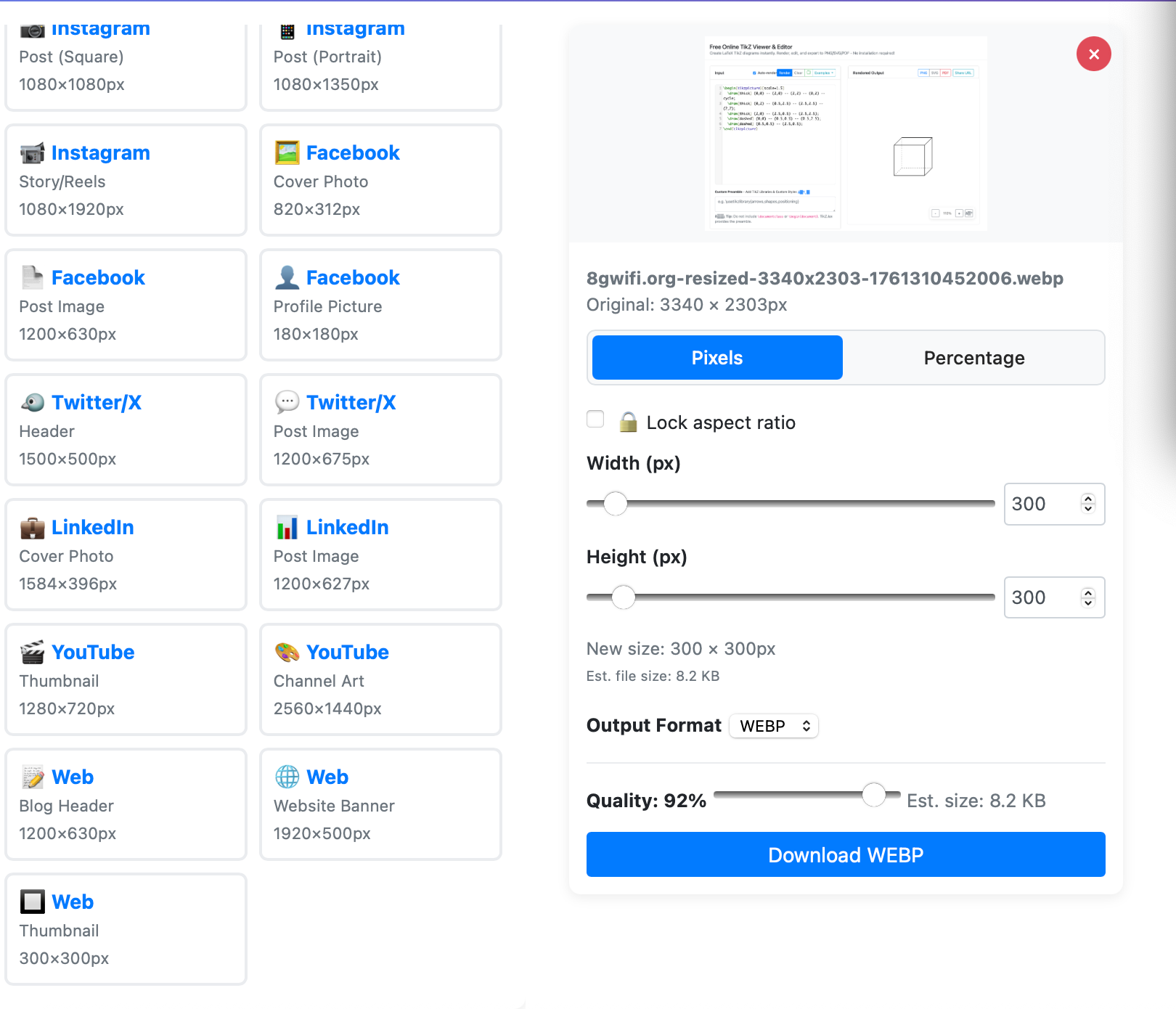
- What it is: This method provides granular control, allowing you to specify the exact pixel width and height for your GIF. You might input values like 128x128 pixels or 480x480 pixels.
- When to use it: Exact dimension resizing is essential when you're adhering to strict platform requirements or need a GIF to fit perfectly into a predefined space on a website or application. Many social media platforms and communication apps have specific size guidelines for optimal display.
- Key Consideration: While setting exact dimensions offers precision, it's vital to consider the original aspect ratio. Most advanced Gif Resizer tools offer an option to "constrain proportions" or "lock aspect ratio." Enabling this will automatically adjust one dimension when you change the other, preventing distortion. If you override this, be prepared for potential stretching or compression of your animation.
Choosing between these two methods depends entirely on your specific needs. For general-purpose reductions, percentages are quick and safe. For platform-specific uploads, exact dimensions with aspect ratio awareness are your best bet.
Decoding GIF Quality Settings: Sharpness, Speed, and Balance
Beyond dimensions, the "quality" setting is another critical factor influencing your resized GIF's appearance, file size, and processing time. A good Gif Resizer offers various filtering algorithms, each designed for a specific trade-off between visual fidelity and performance.
High Quality (Lanczos Filtering)
- What it is: Lanczos filtering is an advanced mathematical interpolation method known for producing the sharpest possible results. It's highly effective at preserving fine details and smooth gradients.
- When to use it: This setting is ideal for professional applications, such as resizing logos, intricate artwork, or any GIF where visual clarity is paramount. If you plan to further process or even upscale your GIF later (perhaps using an AI-powered upscaler), starting with a high-quality resize ensures the best possible foundation.
- Trade-off: Processing with Lanczos filtering is computationally intensive and takes longer, especially for larger files.
Medium Quality (Triangle Filtering)
- What it is: Triangle filtering offers a balanced approach, delivering good visual quality without the extensive processing time of Lanczos.
- When to use it: This is the recommended setting for most everyday use cases. It provides excellent results for social media posts, chat messages, web content, and email newsletters where a good balance between file size, quality, and processing speed is desired.
- Benefit: It hits the sweet spot for general-purpose GIF resizing, offering a noticeable quality improvement over faster methods without significant delays.
Fast Processing (Point Sampling)
- What it is: Point sampling is the simplest and fastest filtering method. It essentially picks the nearest pixel value for each new pixel, making it incredibly quick.
- When to use it: Opt for fast processing when speed is your absolute priority, such as creating quick previews, dealing with extremely large GIF files, or when the visual fidelity is less critical.
- Trade-off: Due to its simplistic nature, point sampling can lead to pixelated or jagged results, particularly when enlarging GIFs. If upscaling is your goal, consider dedicated AI upscalers for better detail enhancement rather than relying on point sampling.
For most users, the Medium Quality setting offers the best equilibrium of speed and visual appeal. However, understanding the nuances of each option empowers you to make an informed choice based on your project's demands.
Tailoring GIFs for Platforms and Performance
One of the primary reasons to use a Gif Resizer is to meet the specific requirements and optimize performance across various digital platforms. Each platform has its own set of rules and best practices for animated content.
Discord Emojis and Stickers
Discord has strict guidelines for custom emojis and stickers. They must be precisely 128x128 pixels and under 256KB in file size. A dedicated Gif Resizer often includes a 128x128 preset, making it easy to hit the dimension target. If your GIF is still too large after resizing, you might need to use a GIF compressor tool to further reduce its file weight without changing dimensions. This ensures your animated reactions display perfectly within servers without exceeding upload limits.
Twitter / X Animated Posts
Twitter (now X) supports GIFs up to 15MB, but it strongly recommends keeping them under 5MB for optimal user experience and faster loading. Resizing your GIF to common dimensions like 480x480 pixels or smaller is an effective strategy to reduce the file weight significantly. Smaller files not only upload faster but also consume less data for your audience, leading to better engagement. If you frequently download animated content from Twitter, dedicated Twitter GIF downloaders can help you grab content, which you can then resize for your own needs.
Email and Newsletters
Incorporating animated GIFs into emails can boost engagement, but they come with unique challenges. To ensure proper display across a multitude of email clients and prevent long load times, GIFs in emails should ideally be under 500KB and no wider than 600 pixels. Beyond just dimensions and file size, some Gif Resizer tools allow you to adjust the animation speed. A slightly slower, smoother animation can make a big difference in the user experience within an email, preventing a jerky or overwhelming effect. For more in-depth strategies on optimizing GIFs for communication channels, read our article: Resize GIFs Online: Optimize for Discord, Twitter & Email.
Web Performance
For website owners and developers, GIF optimization is directly linked to page speed scores and search engine rankings. Smaller GIF files load significantly faster, contributing to a snappier user experience and improved core web vitals. This directly impacts SEO, as search engines favor faster websites. While resizing helps tremendously, for even better performance, consider converting your animated GIFs to modern video formats like MP4, which are typically 80% smaller while retaining similar visual quality. For comprehensive guidance on web optimization, check out: Boost Web Performance: Optimize GIF Size & Quality.
Will resizing affect the animation quality? A well-designed Gif Resizer processes each frame of your animation individually, applying advanced filtering algorithms to maintain smoothness. When scaling down, quality is generally well-preserved. For scenarios requiring significant enlargement, where simple resizing might lead to pixelation, specialized AI-powered GIF upscalers can intelligently add detail and definition.
Your Step-by-Step Guide to Using a GIF Resizer Tool
While specific interfaces may vary, the general workflow for using an online Gif Resizer tool remains consistent and user-friendly:
- Upload Your GIF: Begin by uploading your animated GIF file. Most tools support drag-and-drop functionality for convenience, or you can use a traditional file browser.
- Choose Your Resize Method: Decide whether you want to scale by percentage or set exact pixel dimensions. Utilize preset buttons for popular sizes (like 128x128 for Discord or 480x480 for Twitter) if available, as they streamline the process.
- Select a Quality Setting: Based on your needs for sharpness and speed, pick between High (Lanczos), Medium (Triangle), or Fast (Point) quality. Remember, Medium is a great all-rounder for most scenarios.
- Preview and Adjust: Before committing to the processing, a summary panel usually displays the new dimensions and estimated file size. Take a moment to review these details. If they don't look right, you can easily go back and make adjustments.
- Process and Download: Once satisfied, click the "Resize GIF" or equivalent button. The tool will process your animation, and you'll then be able to download your newly optimized GIF.
Can I resize very large GIF files? Most robust Gif Resizer tools support significantly large files, often up to 50MB or more. Be aware that processing very large GIFs, especially with high-quality settings, may take a few minutes. If, after resizing, your file is still too large for your specific needs, remember that further compression (reducing file size without changing dimensions) is often an available option to meet stringent limits.
Conclusion
Mastering the art of GIF resizing is a crucial skill in today's visually driven digital landscape. Whether you're a social media manager, a web developer, or simply someone who loves sharing animated memes, an effective Gif Resizer is an indispensable tool. By understanding the differences between percentage and dimension-based scaling, intelligently choosing your quality settings, and optimizing for specific platform requirements, you can ensure your animated content always looks its best, loads quickly, and performs flawlessly. Embrace the power of intelligent GIF optimization to enhance user experience, improve web performance, and communicate more effectively across all your digital channels.